Sometimes a few files extensions type doesn't works on website / hosting server, for example flash video files. This post describes that how to add or set-up a MIME type.
To play a .FLV (Flash video file format) on your hosting server, you have to configure
flash MIME types
Step 1: Open your web hosting control panel.
Step 2: Search for option similar to "MIME".
Step 3: Click on Add New MIME type.
Step 4: In the MIME type enter the type, e.g. "video/x-flv"
Step 5: In the extension type the file extension you want to enable, e.g. ".flv"
Step 6: Click on the add button.
The above procedure will let your domain play the Flash video files.
Showing posts with label File Extensions. Show all posts
Showing posts with label File Extensions. Show all posts
Saturday, September 13, 2008

Wednesday, August 27, 2008
View .Dat File Contents
Many of you have encountered a situation where you can't open files having .DAT extension. This article will discuss that what is DAT format and how to deal with it.
What is DAT file Format?
A .DAT file can contain text, graphic, or general binary data or video.
A .dat file can be opened in many softwares depending upon the file contents.
Some of the common software are listed below which saves their information file in .DAT format.
Antivirus data, Btrieve Database, Digital Audio Tape, Generally text or binary datafile, Internet Explorer Cache, MapInfo native data format, Microsoft Exchange Server Error message, Mitsubishi DJ-1000 and Photorun Native Format, MS Word for DOS file, Novell Message File, Programming, SPOT image format, Terrasoft dataset definition file, Video CD MPEG movie MPEG1,
WordPerfect Merge Data, Z80 Spectrum Emulator Snap/File Format, DataFlex table file, DataFlex datafile, Pegasus Mail content control definitions, Nero BackItUp drive image.
In a broad way you can use Windows Media Player to open a .DAT file if you think that it contains video. If you think that it contains textual information than use notepad to view it's content.
How to open a .DAT File?
Follow the instructions below:
1) 1) Right click on the .dat file that you want to view.
2) in the context menu select "Open With"
3) In the "Open With" options select "Notepad" if it exists in the list , if it doesn't appear than select "Choose Program" option.
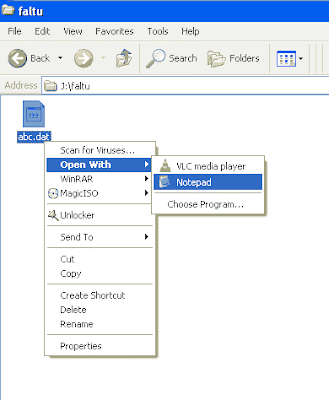
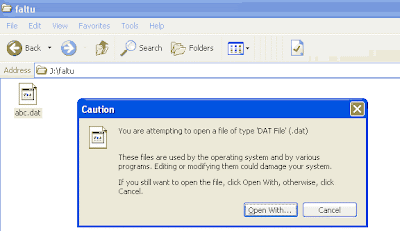
4) A Dialog box will appear, click on "Open With" button.
5) In next dialog select radio button "Select the program from a list".

6) Now in the a list will appear having all the software list to open with.
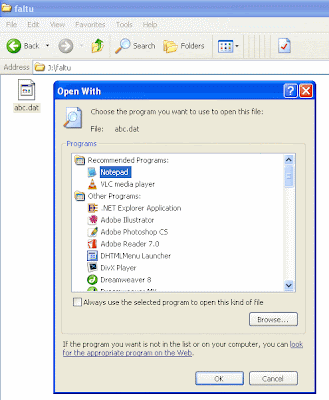
7) Select your software, and click on OK. Now file will get opened in the software you selected.
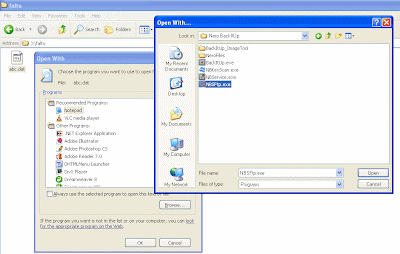
8) If software list window don't display the software which you want, than click on the "Browse" button, and navigate to the software's installation folder and select software executable (.exe) file. and click on OK.
What is DAT file Format?
A .DAT file can contain text, graphic, or general binary data or video.
A .dat file can be opened in many softwares depending upon the file contents.
Some of the common software are listed below which saves their information file in .DAT format.
Antivirus data, Btrieve Database, Digital Audio Tape, Generally text or binary datafile, Internet Explorer Cache, MapInfo native data format, Microsoft Exchange Server Error message, Mitsubishi DJ-1000 and Photorun Native Format, MS Word for DOS file, Novell Message File, Programming, SPOT image format, Terrasoft dataset definition file, Video CD MPEG movie MPEG1,
WordPerfect Merge Data, Z80 Spectrum Emulator Snap/File Format, DataFlex table file, DataFlex datafile, Pegasus Mail content control definitions, Nero BackItUp drive image.
In a broad way you can use Windows Media Player to open a .DAT file if you think that it contains video. If you think that it contains textual information than use notepad to view it's content.
How to open a .DAT File?
Follow the instructions below:
1) 1) Right click on the .dat file that you want to view.
2) in the context menu select "Open With"
3) In the "Open With" options select "Notepad" if it exists in the list , if it doesn't appear than select "Choose Program" option.

4) A Dialog box will appear, click on "Open With" button.

5) In next dialog select radio button "Select the program from a list".

6) Now in the a list will appear having all the software list to open with.

7) Select your software, and click on OK. Now file will get opened in the software you selected.
8) If software list window don't display the software which you want, than click on the "Browse" button, and navigate to the software's installation folder and select software executable (.exe) file. and click on OK.

Monday, August 25, 2008
Open and View .XPS Files in Windows XP
XPS is designed for a replacement of the Enhanced Metafile (.EMF) format; it is similar to a .PDF file, but is based on XML instead of the PostScript language.
XPS files can be opened with Microsoft's XPS Viewer, included with Windows Vista; it is also included with the XPS Essentials Pack, which can be downloaded from Microsoft and used with Windows XP.
To open and view .XPS files you can use "Microsoft XPS Essentials Pack" from http://www.microsoft.com/whdc/xps/viewxps.mspx for Windows XP and 2000 and Vista.
XPS files can be opened with Microsoft's XPS Viewer, included with Windows Vista; it is also included with the XPS Essentials Pack, which can be downloaded from Microsoft and used with Windows XP.
To open and view .XPS files you can use "Microsoft XPS Essentials Pack" from http://www.microsoft.com/whdc/xps/viewxps.mspx for Windows XP and 2000 and Vista.
Subscribe to:
Posts (Atom)
